Hearten help
Help with Hearten
Setting up Hearten: Wishlist & Alerts, and answers to common questions. Inside the app, Home has the setup steps and Help has more, and the field reference explains every setting. Stuck? Email support@copperrobot.co.uk.
Setting it up
- Install Hearten from the Shopify App Store. It opens on Home, with the setup steps.
- Turn it on. Home’s Turn on button opens your theme editor with the Wishlist app embed switched on: save the theme. That one switch puts hearts on your product cards, the wishlist icon in your header, the drawer and the wishlist page.
- Add the Save button beside your buy buttons, with Home’s Add button. Your store needs at least one product first: the theme editor needs a product page to show.
- Choose how it looks in Settings: the shape (a heart, star, bookmark, gift, sparkle, diamond, flower or paw print), what the list is called (Wishlist, Favourites or Saved), colour, size and corner, the wishlist icon and the drawer, with a preview.
- Choose your alerts on the Alerts page: back in stock, price drop and low stock, and their thresholds.
What each setting means: the field reference for Settings and Alerts, and for every theme editor block, starting with the app embed.
Where does the Save button go?
Beside your buy buttons on product pages, where it remembers the size or colour the shopper chose. Home’s Add button adds the Save button block to the product page. In Horizon and themes like it, that puts it below the whole product section, so to have it beside the buy buttons, open Product information, then Details, choose Add block, Apps, Save button, and drag it under Buy buttons.
Where’s the wishlist icon?
Hearten puts it in your header itself, beside the basket. In Dawn and themes like it you can add the Wishlist icon block to the header instead (theme editor, Header, Add block, Apps), so it’s drawn with the header. In Settings you can have a floating button instead, or no icon (then add a link to your wishlist page to a menu: Online Store, Navigation).
Where’s the wishlist page?
At /apps/hearten on your store, inside your theme, straight away. For a page of your own at /pages/wishlist, where you can add your own sections around it, follow Home’s three steps: make a page template called “wishlist” in the theme editor, add the Wishlist page block to it, and make a page called Wishlist using that template. The icon and messages then link there by themselves.
Can I change the /apps/hearten address?
Please don’t: Shopify lets you change an app’s address on your store (Settings, Apps, Hearten), but the wishlist page, the alert emails’ links and the storefront all use /apps/hearten. For a wishlist page at an address of your own, use the Wishlist page block on a page, as above.
Shoppers’ lists
Do shoppers need an account?
No. A guest’s list is kept in their own browser, not by us (only what they share, or an item they ask alerts for, comes to us), and when they sign in it joins their account, with an Undo. A signed-in customer’s list is kept by Hearten and follows them to any device. You can ask guests to sign in before saving, in Settings.
Why did a guest’s list disappear?
Safari clears what a site has stored after about seven days of using Safari without visiting that site, and some shoppers clear their browser themselves. Signed-in customers’ lists are kept by Hearten, so the page and drawer suggest signing in.
How many items can a list hold?
200, on every plan, with no limit on shoppers, saves or page views.
How does sharing work?
The page and drawer have a Share button, which copies a link (or opens the phone’s share menu). A signed-in customer’s link shows their list as it is now; a guest’s shows a copy of it, kept for 90 days after it was last opened. Whoever opens it can save the items to their own list or add them all to the basket. You can turn sharing off in Settings: then no new links can be made, and links already sent, gift lists’ too, open a page saying the list isn’t shared any more. Turn it back on and they work again.
Can customers make more than one list?
With Pro, yes: signed-in customers can make named lists, such as “Christmas” or “For the flat”, from the list picker on their wishlist page. Saving puts an item on their Wishlist; Change list in the message that follows, or Move to on the item, puts it on another. Up to 20 lists, and 200 items across them.
How do gift lists work?
A gift list is a named list with “This is a gift list” ticked, and an optional date. Its share link opens a page with its name and date, where friends and family tick I’ve bought this so nobody buys it twice; an item added to the basket from that page is marked bought by the order too, where orders are counted. The list’s owner doesn’t see what’s been bought, to keep the surprise, unless they choose to. There are no delivery addresses or group gifts: it’s a list to share, not a registry.
What happens when an item is added to the basket?
It stays on the list, so it can be bought again or shared, unless you choose in Settings to take it off once it’s in the basket. Settings also chooses what shoppers see after adding: your theme’s basket drawer, the basket page, or a short message (which also shows if your theme has no drawer).
Alerts
How do shoppers ask for alerts?
With the bell beside each item on their wishlist, in the drawer and on the page. A signed-in customer turns it on with one tap; a guest gives their email, and it’s on at once. Every alert email says why it came and has a link to stop them, at most one a day, and an address can watch up to 20 items without signing in. To try it yourself, use an address you can open. Which kinds they can ask for (back in stock, price drop, low stock) and the thresholds are yours, on the Alerts page.
When is an alert sent?
Back in stock when an item (or the option they chose) goes from sold out to available, 15 to 20 minutes later, so a stock correction undone at once emails nobody. Price drop when the price falls at least your threshold below the price when they asked; a cut smaller than your threshold sends nothing. Low stock when it falls to your threshold or below while still available. Never the same alert twice in 7 days, at most one email a shopper in any 20 hours (alerts due in between come together, and one due within 15 minutes of another waits for it), and each is checked again just before it goes. An item that keeps selling when out of stock never comes back in stock or runs low. The Alerts page lists these waits. To try alerts yourself, use a different email address for each test.
Do shoppers need to agree to marketing?
No: an alert is a message they asked for, about one item, not marketing. The bell says what they’ll get, every email has a one-click unsubscribe, and an unsubscribe is kept so it holds. Hearten never emails anyone about items they didn’t ask about.
Which price does a price drop use?
Your store’s own price for the product, not prices set per market (country). If your store sells in more than one currency, alert and reminder emails show no prices (a price drop says the price has dropped), as a shopper in another market sees their own price on your store. Flow’s Old price and New price are in your store’s currency.
Who sends the emails?
Hearten, from your store’s name (alerts@mail.copperrobot.co.uk), with replies coming to your store’s email and your store’s address in the footer. If shoppers mark too many as spam, sending pauses for your store and we’ll be in touch. Or send them yourself through Shopify Flow, for signed-in customers.
Reminders
Can Hearten remind customers about their wishlist?
Yes, if you turn reminders on (the Alerts page, Wishlist reminders). Once a day, an item a signed-in customer saved a while ago (14 days by default; you choose 7 to 60), hasn’t bought and is in stock gets one reminder: through Shopify Flow’s Wishlist reminder due trigger on any plan, and with Pro by email from Hearten. Gift lists are never reminded about. Reminders need “Count orders that include a saved item” on (Settings), so nobody is reminded about something they’ve bought.
Who gets reminder emails?
Only signed-in customers who tick Email me reminders about my wishlist on their wishlist page: a reminder is marketing, so it needs their say-so. At most one a week, and each has its own link to stop them, which leaves their alerts alone.
Customer accounts
Can customers see their wishlist in their account?
Yes, with Shopify’s customer accounts: Hearten adds a Wishlist page there, with each item’s picture, price and stock, a link to it and Remove. Shopify doesn’t switch it on or add it to the account’s menu for you, so there are two things to do. First, add the page:
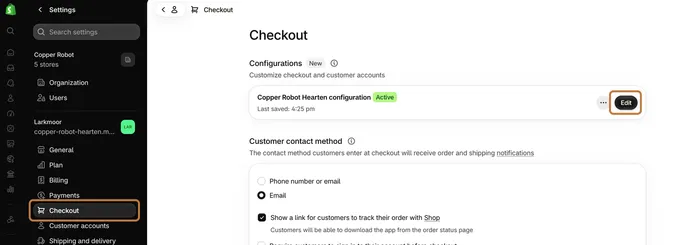
In your Shopify admin, open Settings, then Checkout, and click Edit beside your configuration. 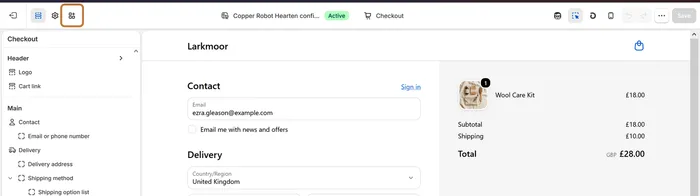
The editor opens on your checkout. Click the Apps icon at the top left. 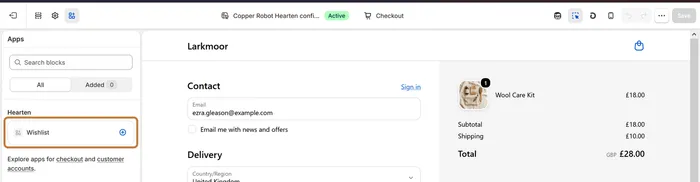
Under Hearten, click the + beside Wishlist. 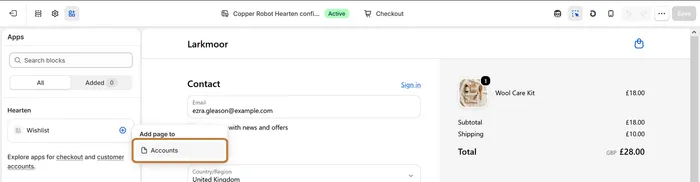
Choose Accounts, then Save at the top right. The editor’s preview says there’s no real customer to show: that’s expected.
Then add it to the menu: in Content, Menus, open the Customer account menu, add a menu item, and link it to Wishlist (under Apps, from Hearten). If the page says “There’s a problem loading this page”, it’s the first part that’s missing.
Can I see what a customer has saved?
On the customer’s page in your admin, the Hearten wishlist block shows what they’ve saved, newest first. On a product’s page, the block shows how many customers have it on their wishlist, its saves in the last 30 days, and who’s waiting for an option that’s sold out. If you don’t see the blocks, add them from the page’s blocks area (Apps).
Figures, orders and reports
Where do Home’s figures come from?
Every shopper’s saves and adds to the basket are counted per product and day, a few seconds after they tap, with nothing about who did them: no cookie, nothing kept on their device, and no names or addresses. To see your own test, save an item, wait a few seconds, then reload Home. Customers’ wishlists, most wished and wanted but sold out come from signed-in customers’ lists, counted in full.
Which orders count as from a wishlist?
With “Count orders that include a saved item” on (Settings; Shopify asks you to let Hearten read orders), each new order’s lines that were on that customer’s wishlist, or were added to the basket from a wishlist, are kept: which order and line, whose, the product, the option and the value, nothing else about the order. Home shows this month’s; Reports any period. Turn it off and Hearten stops Shopify sending it orders and records none.
What’s in Reports?
With Pro: the most wished products over 7, 30, 90 or 365 days, and within a collection; demand by variant, with stock now; saves into orders, with the time from saving to buying; and alerts and reminders sent, with how many customers then ordered the item.
Can I download the data, or bring it from another app?
Home’s Export has four spreadsheets (CSV): products with their saves; signed-in customers’ wishlists by customer ID; alert sign-ups, with the email each shopper gave and what they asked for; and reminder sign-ups. With Pro, Settings, Import wishlists takes a CSV from your old app, with the Shopify customer ID and the product on each row; Hearten checks the file and says what it would import first. Guests’ lists can’t be imported, as they’re kept in their browsers.
Themes
Which themes does it work with?
Online Store 2.0 themes: Shopify’s own, such as Horizon, Dwell, Dawn and Refresh, and paid themes such as Prestige, Impulse and Symmetry, which we’ve checked, and most themes from the last few years. Older (vintage) themes can’t take app embeds or blocks, and Home says so if yours is one.
Something doesn’t look right on my theme
Email us at support@copperrobot.co.uk with your store’s address and what you see (a screenshot helps), and we’ll have a look. Themes differ in how they build their product cards, header and basket, and we add what we learn to Hearten, so it works for every store with the same theme.
Hearts don’t show on my product cards
Hearten finds cards in Horizon and Dawn and themes like them, and most others. If your theme’s cards are missed, give a CSS selector for one product card in the Wishlist embed’s settings (Card selector), or email us and we’ll find it. In Horizon and themes like it you can also add the Card heart block to the product card.
The heart covers my Sale or Sold out badge
Many themes put their badges in a corner of the product picture. Either move the badges in your theme’s settings (in Horizon and themes like it: Theme settings, Badges, Position on cards), or choose the other corner for Hearten in Settings.
Will it slow my store down?
One small script and stylesheet load on each page, from Shopify’s own servers, and nothing moves on the page as hearts appear. The drawer’s and page’s code loads only when a shopper opens them, and product details come from your store itself.
Shopify Flow
Can I do something when a customer saves an item?
Yes: in Shopify Flow, start a workflow with Hearten’s Wishlist item saved trigger. It carries the customer, the product and the chosen variant, for tagging customers, adding them to a segment, or your own marketing emails. It fires for signed-in customers only, as a guest has no customer.
Can I send alerts or reminders through Flow instead?
Yes: tick “Through Shopify Flow” on the Alerts page, and use the Wishlist item back in stock, price dropped and low in stock triggers, each with the customer, product and variant (price dropped also with the old and new price, in your store’s currency). With reminders on, the Wishlist reminder due trigger fires once for each item due a reminder, on any plan. Flow triggers carry signed-in customers only.
Every trigger and what it carries: the field reference for Shopify Flow.
Plans and removing Hearten
What’s in each plan?
Free has no caps on shoppers or saves (a list holds up to 200 items) and no Hearten branding: hearts, the Save button, guest and signed-in lists, sharing, back-in-stock and price-drop emails, the account page, Home’s figures, export, the admin blocks and Flow. Pro adds low-stock emails, your logo and colour in alert emails, test emails, reminder emails, named lists and gift lists, reports, and importing lists from another wishlist app. Pro is US$9.99 a month, or US$99 a year (Shopify bills apps in US dollars), with a 14-day free trial (less any trial days the store has already used: Shopify counts them over 180 days), on your Shopify bill.
What happens if I uninstall it?
Alerts and reminders stop at once, and its hearts, icon and blocks leave your store with it. Hearten deletes what it keeps for your store 48 hours later, so export your customers’ lists first (Home, Export) if you want a copy. The privacy policy says what that is.
Still stuck?
Email support@copperrobot.co.uk with your store’s address (yourstore.myshopify.com) and what you’re seeing, and we’ll get back to you.